Admin User Interface
Admin Console
The Admin Console is a text-based interface for advanced administration tasks. It provides a REPL (read-evaluate-print loop) where you can execute JavaScript, StructrScript, Cypher queries, and Admin Shell commands directly.
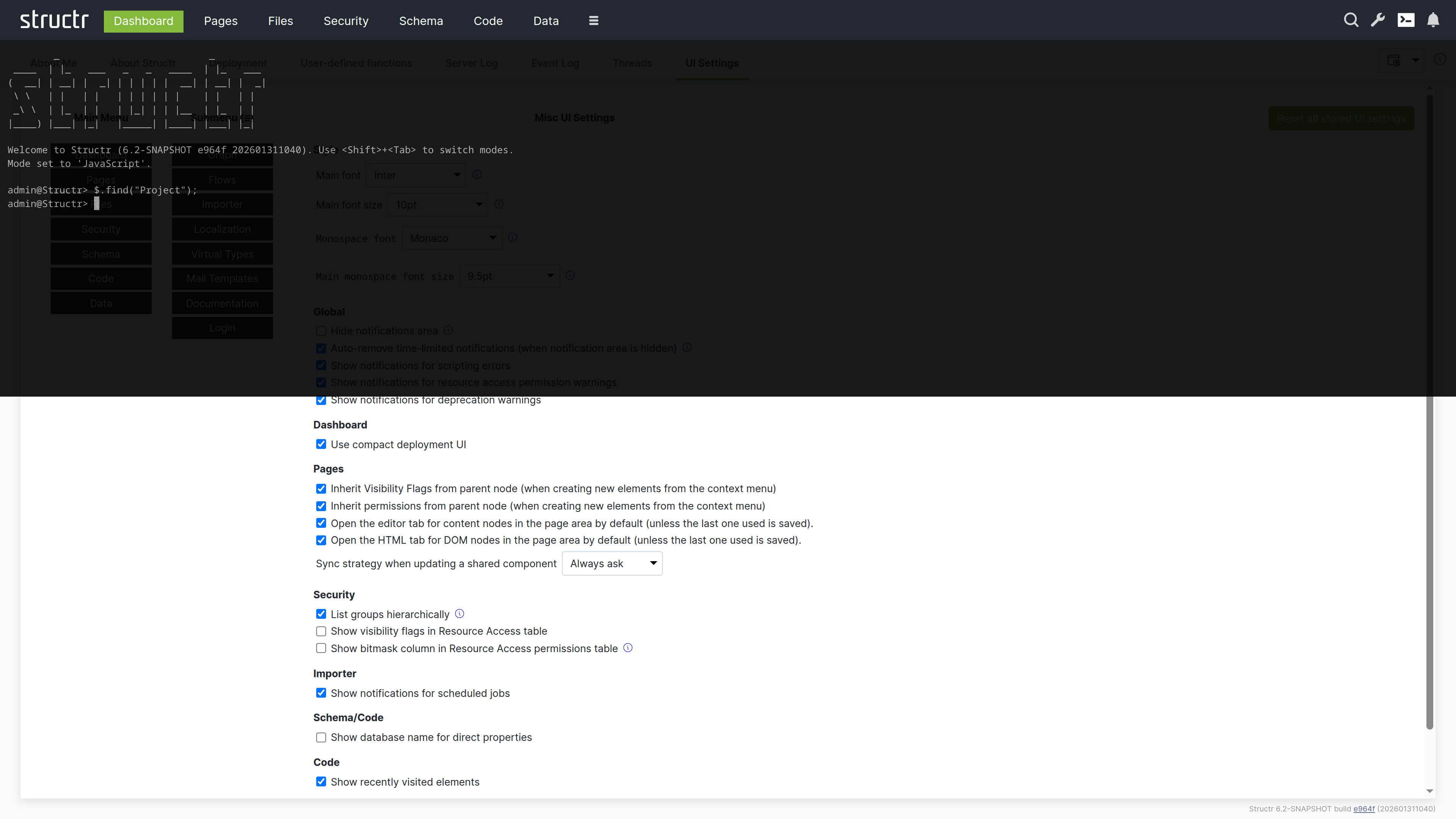
Opening the Console
The Admin Console is integrated into the Admin UI as a Quake-style terminal that slides down from the top of the screen and overlays the current view. You can open it in two ways: click the terminal icon in the header (available in all areas), or press Ctrl+Alt+C (on macOS: Control+Option+C) to toggle the console.
Console Modes
The console has four modes (JavaScript, StructrScript, Cypher and Admin Shell) that you can cycle through by pressing Shift+Tab.
JavaScript Mode
A full JavaScript REPL where you can execute JavaScript expressions. Variables you declare persist across commands, so you can build up state interactively. This mode is useful for data manipulation, quick fixes, and exploration.
// Find all projects and store in a variable
let projects = $.find('Project');

// Use the variable in subsequent commands
$.print(projects.length + ' projects found');

// Modify data interactively
for (let p of projects) {
    if (p.status === 'draft') {
        $.set(p, 'status', 'archived');
    }
}
Since all parts of a Structr application are stored in the database, you can use JavaScript mode to create schema types and data objects directly:
$.create('SchemaNode', { name: 'Project' });
$.create('Project', { name: 'Project #1' });
$.find('Project').map(p => p.name).join(', ');
StructrScript Mode
Execute StructrScript expressions directly. This mode is useful for testing expressions before using them in pages or templates. Unlike JavaScript mode, you cannot declare persistent variables here.
find('User', 'name', 'admin')
join(extract(find('Project'), 'name'), ', ')
Cypher Mode
Execute Cypher queries directly against the Neo4j database. This mode is useful for database maintenance tasks like setting labels, modifying data, or exploring relationships.
MATCH (n:Project)-[:HAS_TASK]->(t:Task) RETURN n.name, count(t)
By default, the output is limited to 10 results to prevent overwhelming the display with large result sets. If your query returns more objects, Structr displays an error message asking you to use LIMIT in your query. You can change this limit through the application.console.cypher.maxresults setting in the Configuration Interface.
Admin Shell Mode
A command-line interface for administrative tasks. Type help to see available commands, or help <command> for detailed information about a specific command.
export
Exports the Structr application to a directory on the server filesystem.
export <target>
- target - Absolute path to the target directory
export-data
Exports data from specific types to a directory.
export-data <target> <types>
- target - Absolute path to the target directory
- types - Comma-separated list of type names to export
import
Imports a Structr application from a directory on the server filesystem.
import <source>
- source - Absolute path to the source directory
import-data
Imports data for specific types from a directory.
import-data <source> <doInnerCallbacks> <doOuterCallbacks> <doCascadingDelete>
- source - Absolute path to the source directory
- doInnerCallbacks - Run onCreate/onSave methods during import (true or false)
- doOuterCallbacks - Run afterCreate/afterSave methods during import (true or false)
- doCascadingDelete - Enable cascading delete during import (true or false)
file-import
Imports files directly from a server directory into Structr’s virtual filesystem.
file-import <source> <target> [mode] [existing] [index]
- source - Path to a directory on the server
- target - Target path in Structr’s virtual filesystem
- mode - copy (default) or move
- existing - skip (default), overwrite, or rename
- index - Fulltext-index imported files: true (default) or false
init
Rebuilds indexes, sets UUIDs, or updates labels on nodes and relationships.
init [node|rel] <operation> [for <type>]
- operation - index, ids, or labels
- node|rel - Restrict operation to nodes or relationships
- for
- Restrict operation to a specific type
user
Manages user accounts in the database.
user <command> [arguments]
- list - List all users
- add
[ - Create a new user] [isAdmin] - delete
- Delete a user - password
SSH Access
The Admin Console functionality is also available via SSH for admin users. Connect to the configured SSH port (default 8022):
ssh -p 8022 admin@localhost
You can configure the SSH port through the application.ssh.port setting in the Configuration Interface. Authentication works via password or public key. For public key authentication, store the user’s public key in the publicKey property on the user node.
Related Topics
- Business Logic - JavaScript and StructrScript syntax and capabilities
- Deployment - Using Admin Shell commands for application export/import
- Configuration Interface - Changing console-related settings