Admin User Interface
Job Queue
The Job Queue area displays scheduled jobs and background tasks. It is not limited to import operations – it shows all jobs created with the $.schedule() function as well as batch import jobs. By default, this area is hidden in the burger menu.
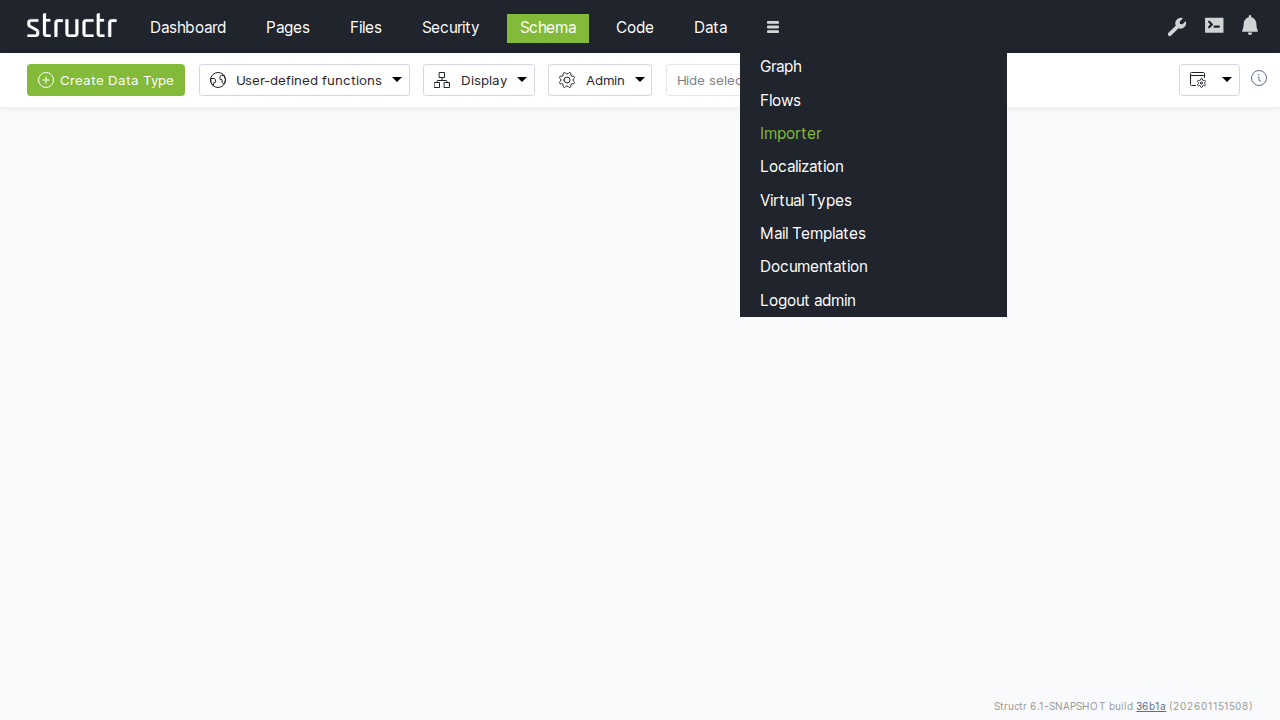
Secondary Menu
Refresh
The button on the left refreshes the job list.
Cancel Jobs
An input field labeled “Cancel ALL queued jobs after this ID:” lets you specify a job ID. Click the “Cancel Job” button next to it to cancel all queued jobs with IDs higher than the specified value. This is useful when you need to stop a large number of scheduled jobs at once.
Settings
On the right side, the usual configuration options are available.
The Job Table
The main area displays a table of all jobs with the following columns:
- Job ID – The unique identifier for the job
- Job Type – The type of job (e.g., scheduled function, import batch)
- User – The user who created the job
- File UUID / Job Title: For import jobs, the UUID of the file being imported; for scheduled jobs, the title given to
$.schedule() - File Path – For import jobs, the path to the file
- File Size – For import jobs, the size of the file
- Processed Chunks – For chunked imports, shows progress as processed/total chunks
- Status – The current state of the job (queued, running, completed, failed)
- Action – Actions you can perform on the job, such as cancelling it
Background
This area was originally designed to display import jobs – when you import a large file that gets split into chunks, each batch appears here so you can monitor progress. Later, the area was extended to also show jobs created with the $.schedule() function, making it a general-purpose job monitor.
Related Topics
- Importing Data – Details on CSV and XML import processes
- Business Logic – Using
$.schedule()to create background jobs