Operations
Configuration
Structr is configured through the structr.conf file located in the installation directory. This file uses a simple key-value format where each line contains a setting name and its value, separated by an equals sign.
File Location
The location of structr.conf depends on how you installed Structr:
| Installation Type | File Location |
|---|---|
| Debian Package | /usr/lib/structr/structr.conf |
| ZIP Distribution | ./structr.conf (in the Structr directory) |
Configuration Interface
The preferred way to edit configuration settings is through the Configuration Interface in the Admin UI. This interface displays all available settings organized by category, shows default values, and provides descriptions for each setting.
You can access the Configuration Interface by clicking the wrench icon in the Admin UI header bar. The interface opens in a new browser tab and requires authentication with the superuser password.
A fresh installation is also set up through this interface. Until the initial configuration has been completed, requests to the root URL are redirected to /structr/config. Since no superuser password exists at that point, the page asks for a setup token, which Structr writes to the server log at every start in a line beginning with Initial setup:. An automated setup that cannot read the log presets the token with the hidden setting setup.token (STRUCTR_setup_token in a Docker environment). After entering it, a Start tab guides you through choosing a database connection and setting the superuser password. Completing the wizard sets the hidden setting setup.wizard.completed; a structr.conf that already contains a superuser password is treated as completed as well.
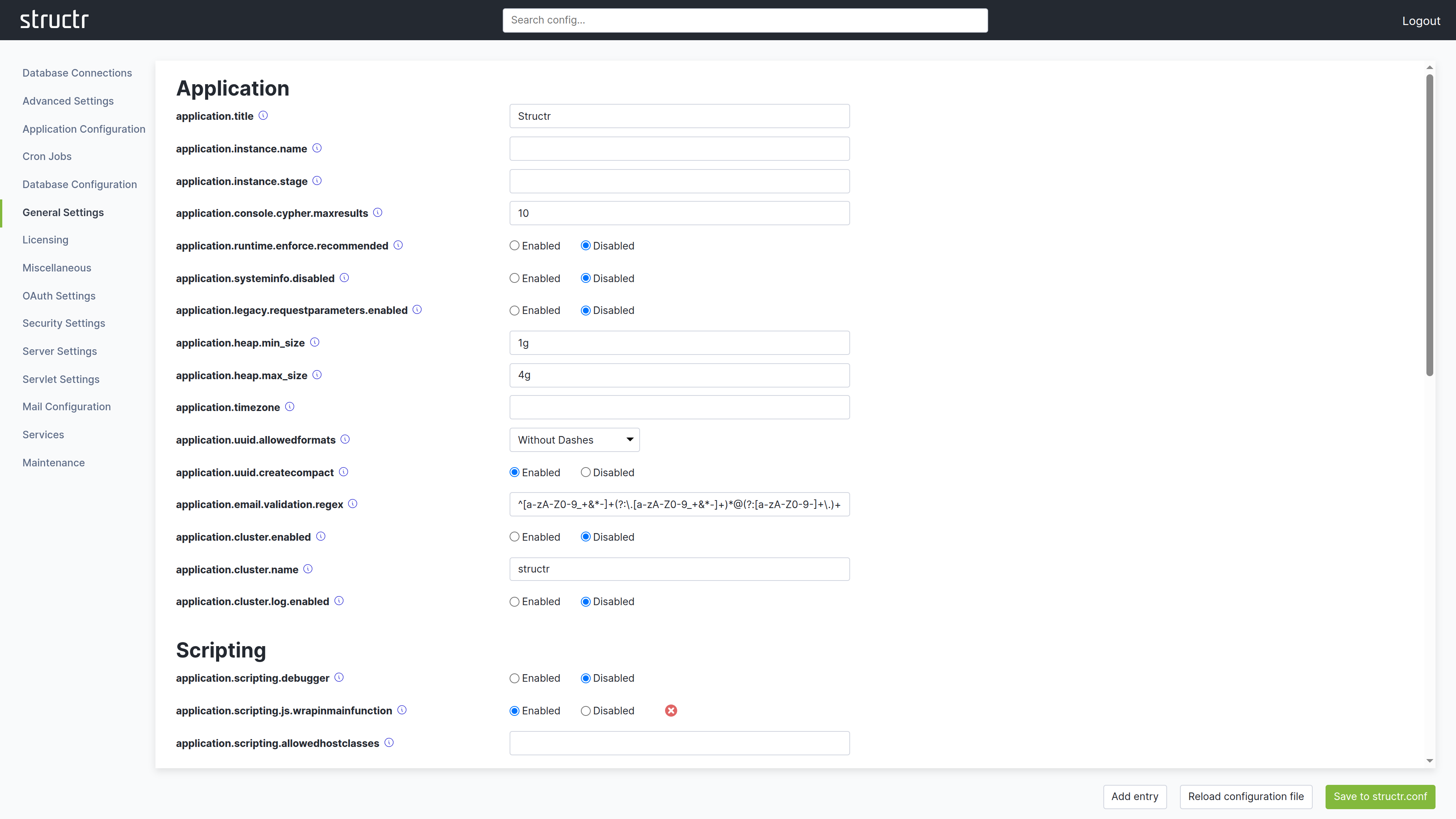
After making changes, click the green button in the lower right corner to save them to structr.conf. Individual settings can be reset to their default value using the red button with the white X next to each field. This takes effect immediately. The interface also provides a reload function to apply configuration changes without restarting Structr.
How Settings Are Stored
Structr has a large number of settings with built-in default values. The structr.conf file only stores settings that differ from these defaults. This keeps the file compact and makes it easy to see what has been customized.
A fresh installation contains only a single entry:
superuser.password = <generated-password>
As you customize your installation through the Configuration Interface, additional settings appear in the file. Settings that match their default values are not written to the file.
Editing the File Directly
While the Configuration Interface is the recommended approach, you can also edit structr.conf directly with a text editor. This is useful for automation, version control, or when you need to configure Structr before starting it for the first time.
Each setting goes on its own line:
superuser.password = mysecretpassword
application.title = My Application
uploadservlet.maxfilesize = 1000
After editing the file manually, changes take effect after restarting Structr or using the reload function in the Configuration Interface.
Configuration via Environment Variables (Docker)
When running Structr in a Docker container, you can pass configuration settings as environment variables instead of editing structr.conf. This is particularly useful with docker-compose.yml files, as it keeps configuration visible and allows different settings per environment without modifying the image.
Naming Convention
To convert a structr.conf setting to an environment variable:
- Replace any existing underscores with double underscores (
_→__) - Replace all dots with single underscores (
.→_) - Add
STRUCTR_as a prefix
Examples
| structr.conf Setting | Environment Variable |
|---|---|
application.http.port |
STRUCTR_application_http_port |
superuser.password |
STRUCTR_superuser_password |
application.instance.name |
STRUCTR_application_instance_name |
application.heap.min_size |
STRUCTR_application_heap_min__size |
Note how min_size becomes min__size – the double underscore preserves the original underscore, distinguishing it from underscores that replace dots.
Docker Compose Example
services:
  structr:
    # See "Docker Image Tags" below. The 7 tag follows the newest 7.x release;
    # pin an exact version such as structr/structr:7.0.0 for production.
    image: structr/structr:7
    ports:
      - "8082:8082"
    environment:
      - STRUCTR_superuser_password=mysecretpassword
      - STRUCTR_application_instance_name=Production
      - STRUCTR_application_instance_stage=production
      - STRUCTR_application_heap_max__size=8g
    volumes:
      - structr-data:/var/lib/structr/files
Environment variables take precedence over settings in structr.conf.
Docker Image Tags
Structr images are published to Docker Hub as structr/structr and to the Structr registry as registry.structr.com/structr/structr. Both carry the same tags, built from the same sources.
Besides the exact version, a release also updates a set of moving tags that always follow the newest matching release:
| Tag | Example | Moves to a new image | Use it when |
|---|---|---|---|
MAJOR.MINOR.PATCH |
7.0.0 |
Never | Recommended for production. The image never changes underneath you. |
MAJOR.MINOR |
7.0 |
With every patch release of that line | You want bug fixes, nothing else. |
MAJOR |
7 |
With every release of that major line | You want bug fixes and new features, but no breaking changes. |
latest |
latest |
With every release, including new major versions | Evaluation and testing only. |
MAJOR.MINOR-SNAPSHOT |
7.1-SNAPSHOT |
On every commit to the development branch | You want to try out unreleased development builds. Not supported for production. |
Structr Enterprise images are published only to the Structr registry, as registry.structr.com/structr/structr-enterprise. They follow the same scheme with an -enterprise suffix: 7.0.0-enterprise, 7.0-enterprise, 7-enterprise and 7.1-enterprise-SNAPSHOT. Their latest tag follows the newest Enterprise release.
All images are multi-architecture and contain both a linux/amd64 and a linux/arm64 variant. Docker picks the matching one automatically.
Recommendation: Pin
MAJOR.MINOR.PATCHin production and update deliberately, or use theMAJORtag if you want automatic updates within a major version. Avoidlatest: breaking changes are introduced in major releases, andlatestwill eventually pull one, which may require a migration of your application.
Essential Settings
While Structr has many configuration options, these are the settings you are most likely to need when setting up and running an instance.
| Category | Setting | Default | Description |
|---|---|---|---|
| Instance | application.instance.name |
(empty) | A name displayed in the top right corner of the Admin UI. |
| Instance | application.instance.stage |
(empty) | The stage of the instance, displayed alongside the instance name. One of dev, test, staging or production. |
| HTTP | application.http.port |
8082 | HTTP port. Requires restart. |
| HTTP | application.https.port |
8083 | HTTPS port. Requires restart. |
| HTTP | application.https.enabled |
false | Enable HTTPS. Requires a keystore with SSL certificate. |
| Memory | application.heap.min_size |
1g | Minimum Java heap size (e.g., 512m, 1g). Requires restart. |
| Memory | application.heap.max_size |
4g | Maximum Java heap size (e.g., 2g, 4g, 8g). Requires restart. |
| Storage | files.path |
<install-dir>/files |
Storage location for uploaded files and the virtual file system. |
| Logging | log.level |
INFO | Log verbosity: TRACE, DEBUG, INFO, WARN, ERROR. Takes effect immediately. |
| Admin | initialuser.name |
admin | Username for the initial admin. |
| Admin | initialuser.password |
admin | Password for the initial admin. Change immediately after first login. |
| Services | configured.services |
NodeService SchemaService AgentService CronService HttpService MigrationService StorageSyncService ProcessTimerService | Services started at boot. Remove a service to disable it; ProcessTimerService fires BPMN timers and is needed when the process module is installed. Requires restart. |
File Permissions
The structr.conf file contains sensitive information including database credentials and encryption keys. Restrict access to this file:
chmod 600 structr.conf
This ensures only the file owner can read and write the configuration. Other users on the system cannot access it.
When using Neo4j as database, also follow the Neo4j file permission recommendations.
Data-at-Rest Encryption
To protect data stored on disk in case of physical hardware theft, enable filesystem-level encryption on the operating system. This is called data-at-rest encryption and must be configured at the OS level as Structr does not provide this directly.
Consult your operating system documentation for options like LUKS (Linux), BitLocker (Windows), or FileVault (macOS).
Related Topics
- Email - SMTP configuration
- OAuth - Authentication provider settings
- JWT Authentication - Token settings
- Two-Factor Authentication - 2FA settings