


Data Model
Extending a Type
When you click Create in the Create Type dialog, the new type is created and the dialog switches to an Edit Type dialog. You can also open the Edit Type dialog by hovering over a type node and clicking the pencil icon.
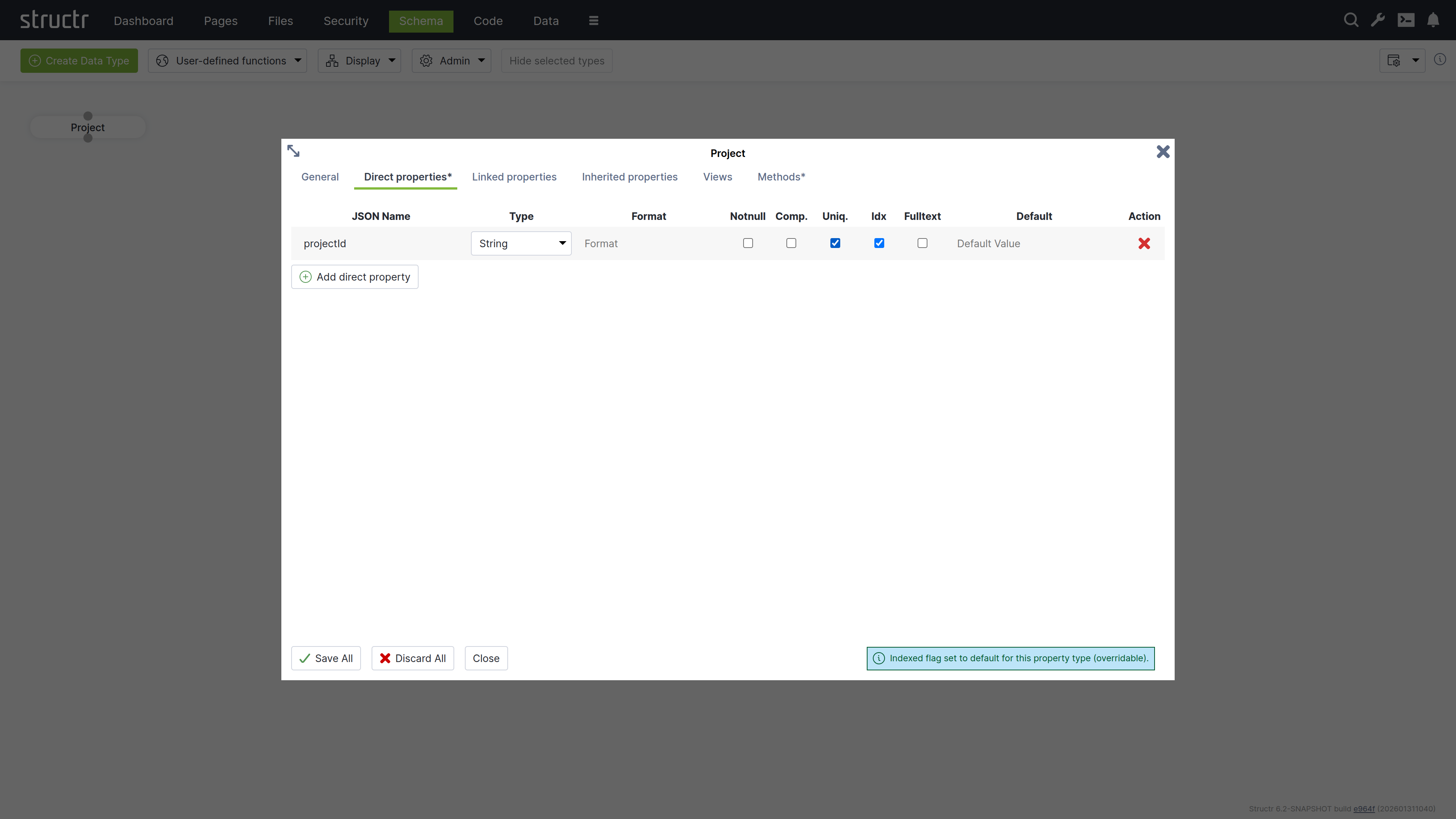
The dialog consists of six tabs that configure type properties or display type information.
General
The General tab is similar to the Create Type dialog and provides configuration options for name, traits, changelog and visibility checkboxes, and a Permissions table. The Permissions table allows you to grant specific groups access rights to all instances of the type.
Direct Properties
Direct properties are values stored locally on the node or relationship itself, directly attached to the object in the database. They typically hold simple values like strings, numbers, dates, or booleans, but can also have more complex types like Function or Cypher properties that compute their values dynamically. The Direct Properties tab displays a table where you add and edit these attributes. Each row represents an attribute with the following configuration options.
JSON Name & DB Name¹
JSON Name specifies the attribute name used to access the attribute in code, REST APIs, and other interfaces.
¹ There is an additional setting that is hidden by default: DB Name, which allows you to specify a different database name when working with a database schema you don’t control. Enable this setting through the “Show database name for direct properties” checkbox in the configuration menu in the upper right corner of the Schema area.
Type
Type specifies the attribute’s data type. Common types include String for text values, Integer for whole numbers, and Date for timestamps and date values. Additional types are available, including array versions of these primitive data types.
The type controls what values are accepted as input. For example, an integer attribute only accepts numeric input. A date attribute accepts string values in ISO-8601 format or according to a custom date pattern specified in the format column. Structr stores dates as long values with millisecond precision in the database.
| Type | Description |
|---|---|
Boolean |
True/false values. Returns false instead of null when empty. |
Boolean[] |
Array of boolean values. |
Byte[] |
Binary data stored directly on the node. |
Cypher |
Read-only computed property that executes a Cypher query. |
Date |
Date and time, stored as milliseconds. Accepts ISO-8601 or custom format patterns. |
Date[] |
Array of date values. |
Double |
Floating point numbers with decimal precision. |
Double[] |
Array of double values. |
Encrypted |
String stored with AES encryption. Automatically encrypted on write and decrypted on read with key from structr.conf. |
Enum |
String constrained to allowed values defined in the Format field. |
Enum[] |
Array of enum values, each constrained to the allowed values. |
Function |
Computed property with read and write functions. Configure a type hint for proper indexing. |
Integer |
32-bit whole numbers. |
Integer[] |
Array of integer values. |
Long |
64-bit whole numbers, for large values or identifiers. |
Long[] |
Array of long values. |
String |
Text values. Supports fulltext indexing for advanced search. |
String[] |
Array of strings. |
Thumbnail |
Read-only property that returns a scaled version of an image. Configure dimensions in Format field as “width, height” or “width, height, crop”. |
ZonedDateTime |
Date and time with timezone information preserved. |
For Boolean properties, Structr uses passive indexing – the value is written to the database at transaction end, ensuring Cypher queries can find objects with false values. Function properties also use passive indexing when indexed is enabled.
Format
The Format field is optional and has different meanings depending on the attribute type.
- For date attributes, the format specifies a date pattern following Java’s SimpleDateFormat specification. This allows you to accept date strings in custom formats beyond the default ISO-8601 format while still writing the millisecond-precision
longvalue into the database. - For enum attributes, the format field is interpreted as a comma-separated list of possible values. For example, “small, medium, large” defines an enum property that can only be set to one of those three values.
- For numeric attributes, the format specifies a valid range using mathematical interval notation, allowing you to enforce that input values fall within a certain interval. For example, [2,100[ accepts values from 2 (inclusive) to 100 (exclusive).
- For string attributes, the format is interpreted as a regular expression that validates input. All values written to the attribute must match this regular expression pattern.
Notnull
If you activate the not-null checkbox, the attribute becomes a mandatory attribute for this type, and the creation of objects without a value for this attribute is prevented with a validation error.
Please note that this only applies to newly created objects. If existing objects are modified after this change, the change can only be saved successfully if the mandatory attribute is also set.
Comp.
Comp. stands for Compound Uniqueness, which validates uniqueness across multiple attributes. When you activate the compound uniqueness checkbox on multiple attributes, the system ensures their combined values form a unique combination. For example, if you enable composite uniqueness on both firstName and lastName, the system allows multiple people named “John” and multiple people named “Smith”, but prevents creating two entries with the same combination of “John Smith”.
Uniq.
Uniq. stands for Unique, which validates that an attribute’s value is unique across all instances of the type. When you activate the uniqueness checkbox on an attribute, the system ensures no two instances have the same value for that attribute. For example, if you enable uniqueness on an email attribute, the system prevents creating two User instances with the same e-mail address.
Idx
Idx. stands for Indexed. When you activate the indexed checkbox on an attribute, the system creates a database index that improves query performance for that attribute. Indexing also speeds up uniqueness validation - not having an index on a unique property will massively impact object creation performance.
Fulltext
Fulltext stands for fulltext indexing. When you activate the fulltext checkbox on a string attribute, the system creates a fulltext index with advanced search capabilities and scoring.
You can query fulltext indexed attributes by passing the index name to the searchFulltext() function. The index name is automatically generated from the type and attribute name plus the string “fulltext”, e.g. Project_projectId_fulltext.
Default Value
The default value field specifies a value that is returned when an attribute has no value in the database. You can use default values to ensure attributes always return a meaningful value, even for newly created objects or when values have not been set.
Encrypted Properties
The EncryptedString property type stores text in encrypted format using AES encryption. The encryption key is stored in structr.conf.
Use this property type for sensitive data that should not be stored in plain text, such as API keys, tokens, or personal information that requires protection at the database level.
When you read an EncryptedString property, Structr automatically decrypts it. When you write to it, Structr encrypts the value before storing it.
Note that this protects data in the database but not during transmission – use HTTPS for transport encryption.
Linked Properties
In contrast to direct properties, linked properties are not stored on the node itself. They represent related objects that are reachable through relationships - single objects or collections of objects connected to the current node in the graph. Where direct properties hold simple values, linked properties provide access to complex objects in the vicinity of a node.
The Linked Properties tab displays a table with one row per relationship. Each row shows the property name for this side of the relationship, the relationship details, and the target type. You can edit the property name directly in the table and navigate to the target type by clicking it.
Inherited Properties
This section displays attributes inherited from traits or base classes along with their settings.
Views
The Views tab allows you to configure views for each type. A view is a named collection of attributes that can be accessed via REST and from within the scripting environment, controlling which attributes are included in REST interface output. Structr provides the following four default views.
public
The public view is the default view for REST responses when no view is specified in the request. By default, it contains only the attributes id, type, and name, but you can extend or modify it as needed.
custom
The custom view is automatically managed and contains all attributes of the type and its base classes or traits that you have added manually.
all
The all view is automatically managed by Structr and contains all attributes of the type and its base classes or traits. You cannot modify this view, and it displays only one level of properties while restricting the output of nested objects to id, type, and name to prevent recursion. The all view is intended for internal use and diagnostic purposes such as checking object completeness, and its use should generally be avoided in production applications.
ui
The ui view is an internal view used by the Structr Admin interface and cannot be modified. Like the all view, it displays only one level of properties and restricts the output of nested objects to id, type, and name.
Custom Views
You can create additional views beyond these default views and populate them with any attributes you need. Custom views allow you to tailor the REST output to specific use cases, such as creating a minimal view for list endpoints or a detailed view for single-object requests. You can access each view as its own endpoint by appending the view name to the REST URL of a type.
{{“JSON Nesting Depth”, h4, shortDescription}}
Methods
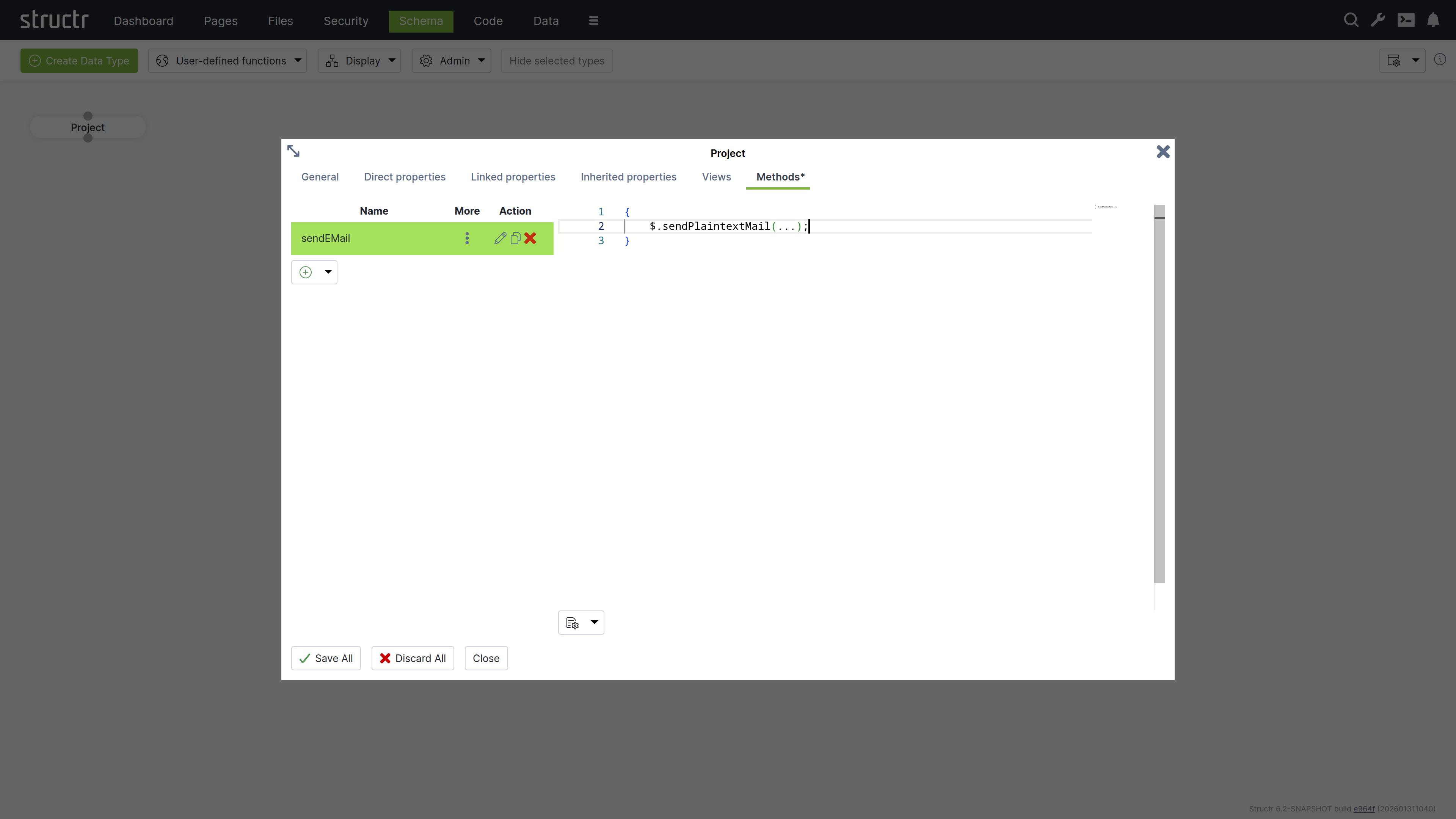
The Methods tab allows you to define custom methods and lifecycle methods for a type. The tab is divided into two sections: a method list on the left and a code editor on the right.
Method List
The left section displays a table of all methods defined on the type, with columns for name, options (three-dot menu), and action buttons. The action buttons let you edit, clone, or delete methods.
Below the table is a dropdown button for creating new methods. You can create either a custom method with a name of your choice, or select one of seven predefined lifecycle methods. When you select a lifecycle method, the system assigns the method name automatically.
The three-dot menu in the options column provides access to method configuration settings:
Method is Static
Makes the method static, allowing it to be called on the type itself rather than on instances.
{
    // call static method on type Project
    $.Project.updateAllProjects();
}
Not Callable via HTTP
Prevents the method from being invoked through the REST API, making it accessible only from within the application.
Wrap JavaScript in main()
Controls how JavaScript code is interpreted. When enabled, the system wraps your script in a main() function, which allows you to use the return keyword to return a value. However, this prevents you from using import statements. When disabled, your script is not wrapped in a function and you can use imports. The return value is the last evaluated instruction, similar to a REPL.
Return Result Object Only
Controls the response format for HTTP calls to this method. When enabled, the method’s return value is sent directly in the response without being wrapped in a result object. This flag only applies to HTTP calls to the method.
This is how the result object of a REST method call.
{
    "result": [
        {
            "id": "a23f6bbb44a943c9b4ccfae6aae0c0fe",
            "type": "Project",
            "name": "Example Project"
        }
    ],
    "query_time": "0.008530752",
    "result_count": 1,
    "page_count": 1,
    "result_count_time": "0.000132669",
    "serialization_time": "0.000526717"
}
This is the same response with the “Resturn Result Object Only” flag set to true.
{
    "id": "a23f6bbb44a943c9b4ccfae6aae0c0fe",
    "type": "Project",
    "name": "Example Project"
}
Code Editor
The right section provides a code editor with autocompletion and syntax highlighting for editing method source code. You write methods in either StructrScript or JavaScript. To use JavaScript, enclose your code in curly braces {...}. Code without curly braces is interpreted as StructrScript.