


Event Action Mapping
Actions
Actions define what happens when an event fires. Each action type has its own configuration options. Most actions require parameters to specify which data to send to the server.
Data Operations
Data operations create, modify, or delete objects in the database.
Create New Object
Creates a new object in the database. You specify the type to create in the “Enter or select type of data object” field and map input fields to the object’s properties using the parameter mapping. Each parameter name corresponds to a property on the new object.
Example: Create Form
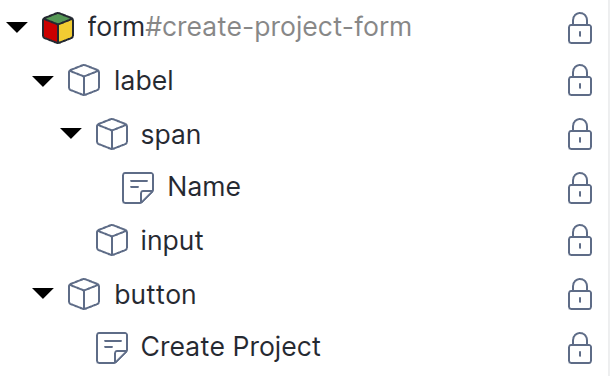
The following example shows how to configure a simple form that creates a new Project. The figure below illustrates the form’s element hierarchy in the page tree and the corresponding HTML.
<form id="create-project-form">
    <label>
        <span>Name</span>
        <input type="text" name="name" required>
    </label>
    <button type="submit">Create Project</button>
</form>
The page tree shows the structure, but not the behavior. To make the form actually create a Project, you need to configure an Event Action Mapping on the <form> element.
Select the form element in the page tree and open the Event Action Mapping panel. Then configure the mapping step by step:
- Set the Event to
submit. This triggers the action when the user submits the form. - Select “Create new object” as the Action.
- In the type field, enter
Project. This is the type of object that will be created. - Under Parameter Mapping, click the plus button to add a parameter. Set the name to
nameand the type to “User Input”. A drop area appears - drag the input field from the page tree onto it. This links the parameter to the input field, so the value the user enters becomes thenameproperty of the new Project. - Under Behavior on Success, select “Navigate to a new page” and enter
/project/{result.id}in the “Success URL” input field.
The completed configuration looks like this:
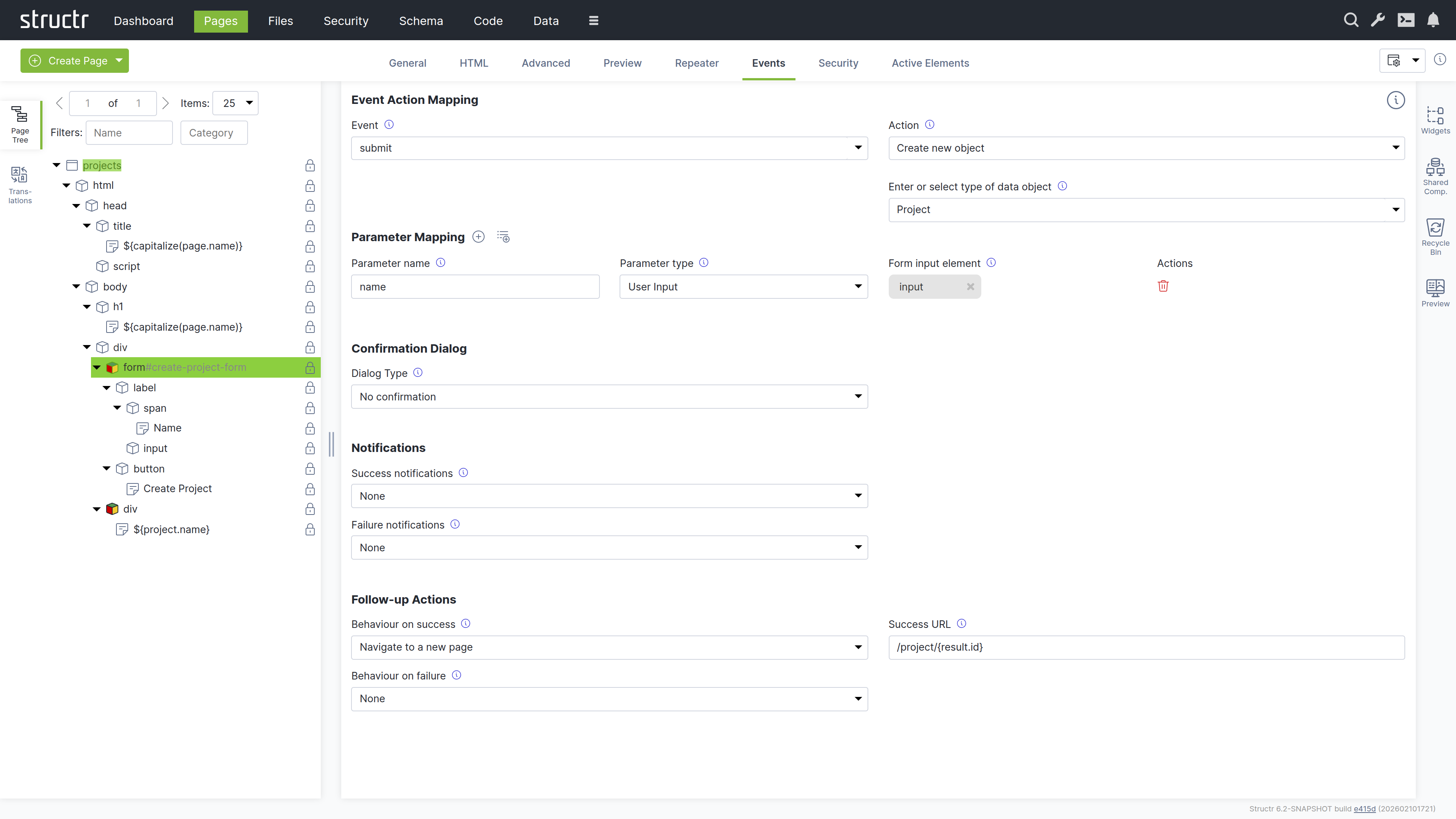
When a user fills in the form and clicks “Create Project”, Structr creates a new Project object with the entered name and redirects the browser to the edit page of the project.
Dynamic Type Selection
Note that you can also enter AbstractNode as the type and pass a parameter named type to determine the actual type at runtime. This is useful when a form can create different types of objects depending on user input.
Update Object
The Update Object action updates an existing object in the database. You enter a template expression in the “UUID of data object to update” field that resolves to the UUID of the object you want to update, for example ${current.id}. Note that this field is not an auto-script field, so you need to include the ${...} wrapper.
The configured parameter mapping determines which properties are updated. Each parameter name corresponds to a property on the object - only the mapped properties are modified, other properties remain unchanged.
Example: Edit Form
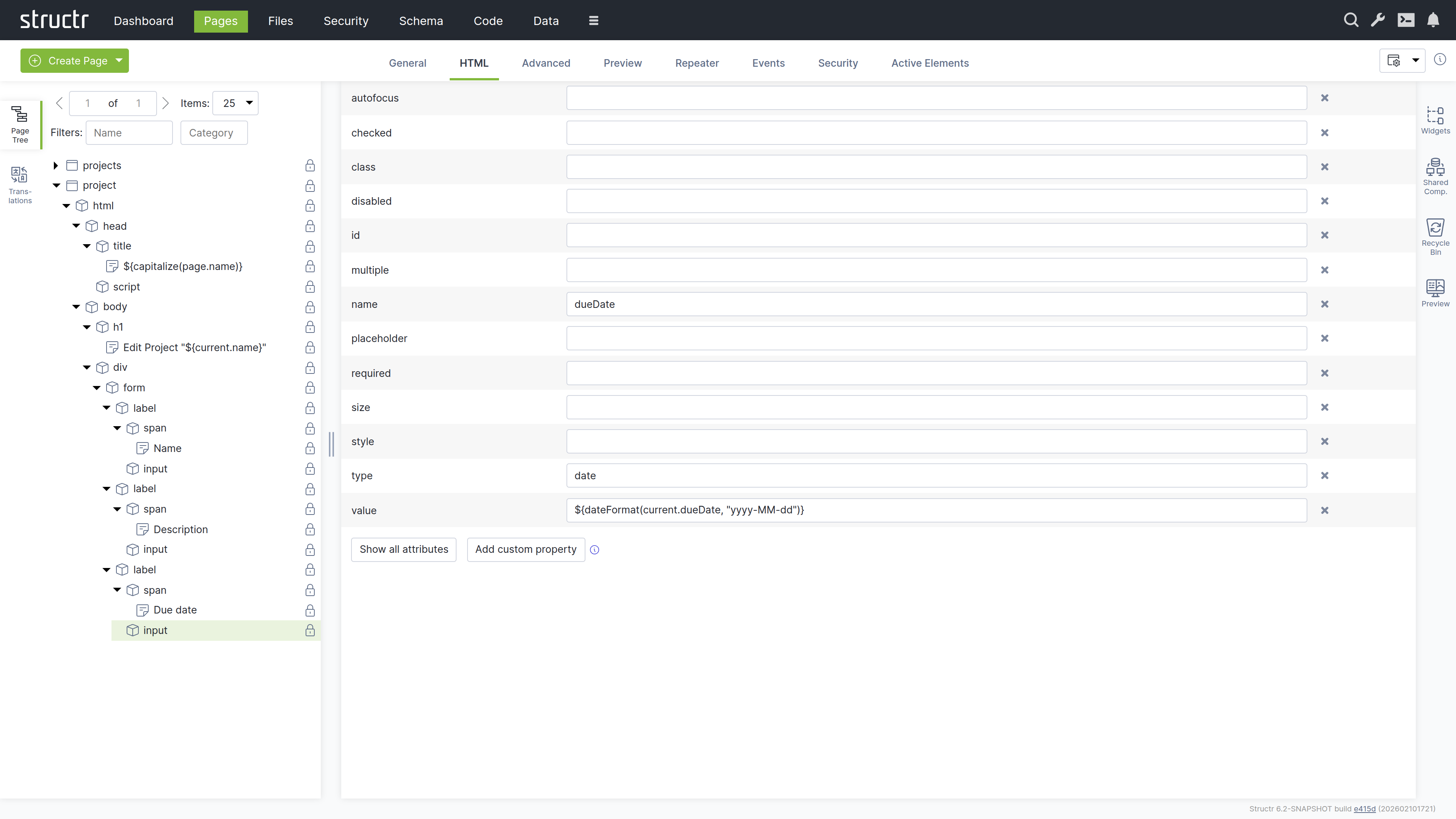
To let users modify existing data, you usually build an edit form. With the Event Action Mapping in Structr, you simply add an input field for each property you want to edit and set each input field’s value to the corresponding property using a template expression, for example ${current.name}. When the user submits the form, the Event Action Mapping sends the modified values back to the server. For details on dynamic attribute values, see the Dynamic Content chapter.
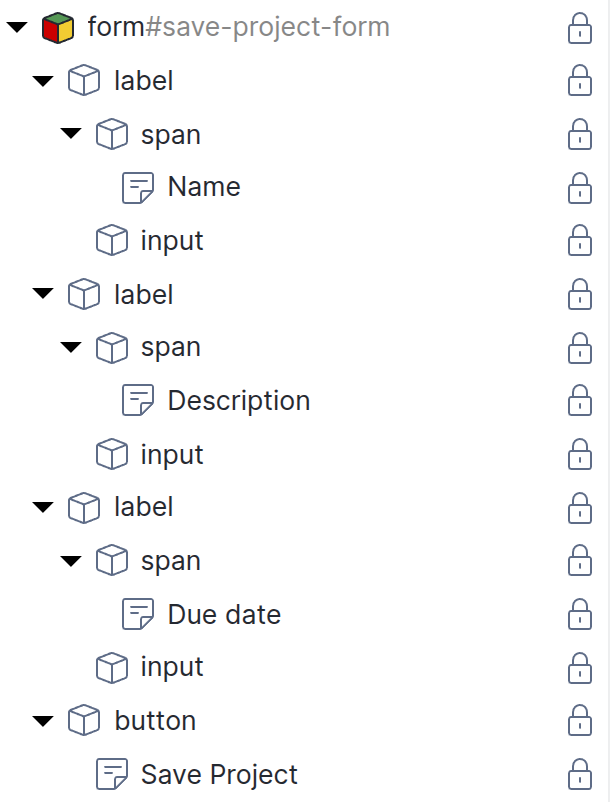
The following example shows the configuration of an edit form for a Project with multiple field types. The page is accessible at /project/{id} where {id} is the project’s UUID. Structr automatically resolves the UUID and makes the project available as current. For details on URL resolution, see the Navigation & Routing chapter.
<form id="edit-project-form">
    <label>
        <span>Name</span>
        <input type="text" name="name" value="${current.name}">
    </label>
    <label>
        <span>Description</span>
        <input type="text" name="description" value="${current.description}">
    </label>
    <label>
        <span>Due Date</span>
        <input type="date" name="dueDate" value="${dateFormat(current.dueDate, 'yyyy-MM-dd')}">
    </label>
    <button type="submit">Save Project</button>
</form>
Select the form element in the page tree and open the Event Action Mapping panel. Then configure the mapping step by step:
- Set the Event to
submit. This triggers the action when the user submits the form. - Select “Update object” as the Action.
- In the UUID of data object field, enter
${current.id}. This is the UUID of the object we want to edit. - In the type field, enter
Project. This is the type of object that we expect to edit. - Under Parameter Mapping, click the plus button to add parameters for each of the properties. Set the name to the name of the property, and the type to “User Input”. A drop area appears - drag the input field from the page tree onto it. This links the parameter to the input field.
- Under Behavior on Success, select “Reload the current page”.
The Action Mapping configuration looks like this:
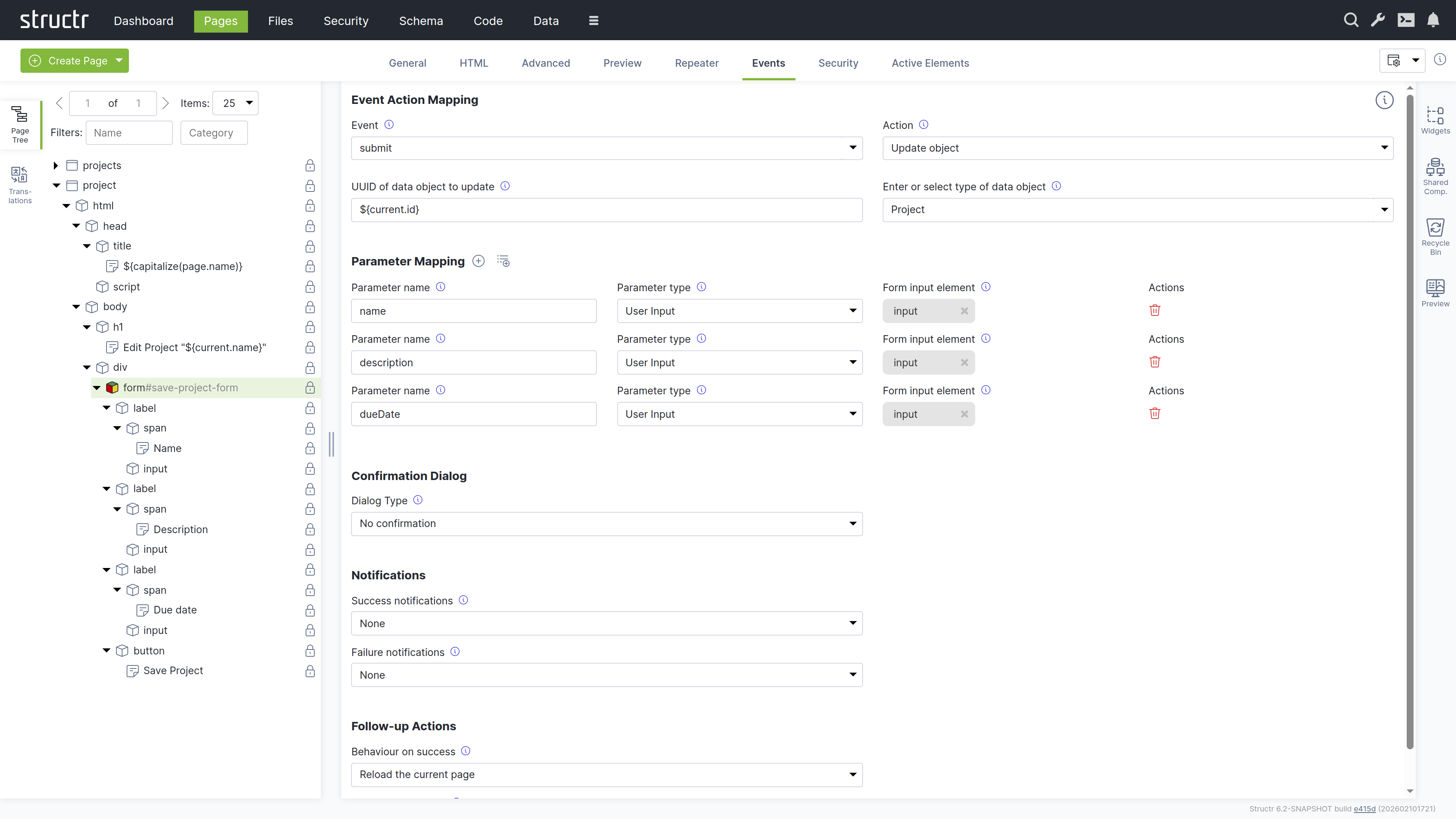
Each input has a value attribute with a template expression that loads the current value. The date field uses dateFormat() to convert to the HTML date input format. The configuration of a single input field looks like this:
Edit Forms with Other Input Types
The example above uses text and date inputs, which load their current values via the value attribute. For <select> elements, Structr provides a different mechanism: the Selected Values Expression field on the General tab of <option> elements. This field accepts a template expression that resolves to the currently selected value or values. Structr automatically compares the result with each option’s value attribute and sets the selected attribute on matching options.
For to-one relationships, the expression points to the single related object, for example current.manager. For to-many relationships, it points to the collection, for example current.tags. Structr handles both cases automatically. The Advanced Example at the end of this chapter demonstrates this for all four relationship cardinalities.
Delete Object
Deletes an object from the database. You enter a template expression in the “UUID of data object to delete” field that resolves to the object’s ID, for example ${current.id}. Note that this field is not an auto-script field, so you need to include the ${...} wrapper.
The delete operation removes only the specified object. Related objects are not automatically deleted - relationships are removed, but the related objects remain in the database.
Example: Delete Button in a List
Consider a list of projects rendered by a repeater. The repeater has a data key like project, and each row contains a delete button:
<div id="project-list">
    <!-- repeater: find('Project'), data key: project -->
    <div>
        <span>${project.name}</span>
        <button class="delete-btn" title="Delete Project">🗑</button>
    </div>
</div>
To make the delete button work:
- Select the button element in the page tree
- Open the Event Action Mapping tab
- Set the event to
click - Set the action to “Delete Object”
- In the “UUID of data object to delete” field, enter
${project.id}- inside a repeater, the data key gives you access to the current object - Set the success follow-up action to “Refresh Page Sections Based on CSS Selectors”
- Enter
#project-listas the selector - this matches theidattribute of the element that contains the repeater
When a user clicks the delete button, Structr deletes the project and reloads the list. The container element needs an id attribute so the partial reload can find and refresh it.
Creating Related Objects Inline
When a form creates a new object that should belong to an existing object, you can use a hidden input to establish the relationship. The hidden input carries the UUID of the parent object, so Structr links the two automatically.
For example, a project page at /project/{id} might include a form to add tasks:
<form id="add-task-form">
    <input type="text" name="name" placeholder="New task..." required>
    <input type="hidden" name="project" value="${current.id}">
    <button type="submit">Add Task</button>
</form>
The Event Action Mapping on this form uses the “Create new object” action with type Task. When the user submits the form, Structr creates a new Task and sets its project relationship to the current project because the hidden input passes the project’s UUID as the project property.
Authentication
Authentication actions manage user sessions.
Sign In
Authenticates a user and starts a session. You provide two parameters: name or eMail to identify the user, and password for authentication. On success, the user is logged in and subsequent page requests have access to the user object via the me keyword. Use a success follow-up action to navigate to a protected area of your application.
If the user has two-factor authentication enabled, additional configuration is required. See the Security chapter for details on setting up the login process for these users.
Sign Out
Ends the current user session. This action requires no parameters. After sign out, the page is reloaded.
Sign Up
Creates a new user account. You provide two parameters: either name or eMail to identify the user, and password for authentication.
Reset Password
Initiates the password reset process for a user. You map an input field to the eMail parameter.
Pagination
Pagination actions navigate through paged data. They work together with the “Request Parameter for Page” parameter type to control which page of results is displayed.
To use pagination, you first need a repeater configured with paging. The function query uses the page() function with a request parameter:
find('Project', page(request.page!1, 10))
This query finds all projects, displays 10 per page, and reads the current page number from the page request parameter. The !1 specifies a default value of 1 if the parameter is not set.
To configure a pagination action, add a parameter with type “Request Parameter for Page” and set the parameter name to match the request parameter used in your function query (e.g. page). Configure a follow-up action to reload the element containing the paginated data.
Next Page
Increments the page number by one.
Previous Page
Decrements the page number by one, with a minimum of 1.
First Page
Sets the page number to 1.
Last Page
Sets the page number to a high value. Note that this does not calculate the actual last page based on the total number of records.
Custom Logic
Custom logic actions execute your own code.
Execute Method
Calls a method defined in your data model. You specify the UUID of the object on which to execute the method and the method name. Parameters you define in the mapping become available under $.arguments in the method body. The method’s return value is available in notifications and follow-up actions. For details on defining methods, see the Business Logic chapter.
Execute Flow
Executes a Structr Flow. You select the flow to execute and map parameters that become available as flow inputs. The flow’s return value is available in notifications and follow-up actions. For details on creating flows, see the Flows chapter.