Admin User Interface
Files
The Files area is Structr’s virtual file system – a familiar file browser interface where you can manage your application’s static assets. CSS, JavaScript, images, documents, and any other files live here.
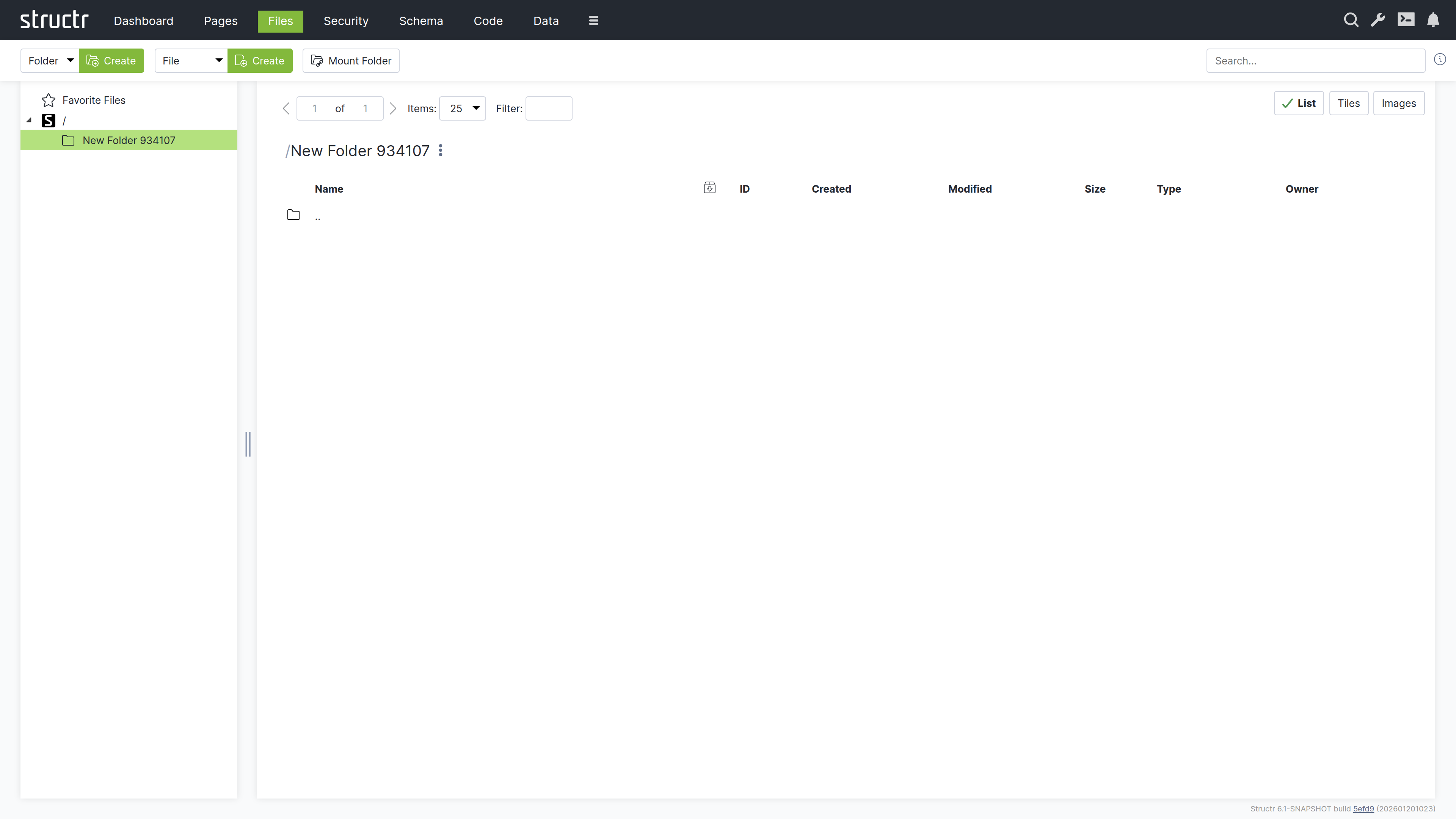
Secondary Menu
Create Folder
The first Create button, together with the type select in front of it, creates a new folder in the currently selected directory. The select offers Folder and any types you have created that extend Folder.
Create File
The second Create button creates a new empty file in the current directory. Its type select offers File and your custom file types.
Upload File(s)
Opens the file chooser of your browser to upload one or more files into the current folder.
Mount Folder
Opens the Mount Dialog for connecting external storage locations to Structr’s virtual file system.
The Mount Dialog
Mounting lets you integrate external directories or storage providers into Structr. When you mount a folder, Structr monitors it for changes and automatically updates metadata when files are added or modified.
The dialog includes:
- Storage Provider: Select the storage backend (currently the local file system of the server)
- Name: The name for the new mounted folder in Structr
- Scan Interval (s): Interval for the periodic scans of the mount target
- Mount Target Folder Type: The type used for folders found below the mount point
- Mount Target File Type: The type used for files found below the mount point
- Enabled Checksums: The checksums calculated on file creation (crc32, md5, sha1, sha512)
- Watch Folder Contents: Registers the path with a watch service so that changes are picked up immediately, if the operating system supports it
- Mount Target: The provider-specific location to mount; for the local file system, the absolute path of the directory
Search
The search field on the right searches across all files by name and, with the content-extraction module, by their contents. Content search covers files in folders with a content extraction configuration (see the Content Extraction button and context menu entry, available to admins); it ignores case, finds words by their beginning or inside longer words (such as sendReminder in $.invoices.sendReminder()) and tolerates small typos. Type your query and press Enter to see results; the search icon next to a result shows the places in the file that match.
The Content Extraction dialog also has an Embedding section: there you choose the LLM provider and embedding model that make the files of a folder searchable by meaning, and see how far the embedding is (see Content Extraction, section “Embeddings and Semantic Search”).
Left Sidebar
Favorites
At the top of the directory tree, Favorite Files provides quick access to frequently used files. Drag any file here during development to keep it handy – this is useful for JavaScript files, stylesheets, or configuration files you edit often.
Directory Tree
Below Favorites, the familiar folder hierarchy shows your file system structure. Click a folder to view its contents on the right. Click a file or folder name to rename it inline.
Main Area
The main area shows the contents of the selected folder.
View Controls
At the top right, three buttons switch between view modes:
- List – Compact rows with detailed information
- Tiles – Medium-sized previews with thumbnails
- Images – Larger previews, ideal for browsing image folders
A pager on the left handles large directories, and a filter box lets you narrow down the displayed files.
The File Table
In list view, each row shows:
- Icon – Click to download or open the file (depending on content type)
- Name: The file name
- Export checkbox – Marks the file for inclusion in deployment exports (only available below the top level)
- ID: The file’s unique identifier
- Created: Creation timestamp
- Modified – Last modification timestamp
- Size – File size
- Type – Both the Structr type and MIME type
- Owner – The file’s owner
Hold Ctrl while clicking to select multiple files for bulk operations, or hold Shift to select a range. Ctrl+A (Cmd+A on macOS) selects all files in the current folder.
Uploading Files
Drag files from your desktop onto the right side of the Files area to upload them. Files are Base64-encoded and uploaded in chunks via WebSocket. This works well for smaller files; for large files or bulk uploads, consider using the REST API or deployment import.
Search Results
When you search, results appear in a table similar to the file list. A magnifying glass icon at the start of each row shows the search context – click it to see where your search term appears within the file.
Context Menu
Right-click a file or hover and click the menu icon to open the context menu.
Edit File
Opens the file in a built-in editor. The editor warns you before opening binary files or files that are too large. For text files, you get syntax highlighting based on the file type.
The editor has two checkboxes: “Replace template expressions” sets the isTemplate flag of the file, and “Show preview” (enabled only for template files) displays the rendered output with the template expressions evaluated.
General
Opens the file’s property dialog with:
- Name: The file name
- Content Type – The MIME type (affects how browsers handle the file)
- Cache for n seconds: Controls HTTP cache headers when serving the file
- Is template (dynamic file): When enabled, Structr evaluates template expressions in the file content before serving it, allowing you to mix static and dynamic content
- Caching disabled – Prevents browser caching
- Include in Frontend Export – Marks the file for deployment export
Advanced
The raw attribute table, same as in other areas.
Add to Favorites
Adds the file to the Favorites section for quick access.
Copy Download URL
Copies the file’s download URL to your clipboard.
Download File
Downloads the file directly.
Security
A submenu with:
- Access Control / Visibility – Opens the full access control dialog
- Quick toggles – Make the file visible to authenticated users, public users, or both
Delete File
Removes the file. The entry is labelled “Delete File” (or “Delete
Folder Context Menu
Folders have a simpler context menu with General (just name and export checkbox), Advanced, Security, and “Delete Folder”.
Content Type Features
Some content types unlock additional functionality.
CSV and XML Files
Files with text/csv or text/xml content type show an “Import CSV” or “Import XML” menu entry that opens the import wizard documented in the Importing Data chapter.
ZIP Archives
ZIP files show two additional options:
- Extract Archive Here – Extracts contents into the current folder
- Extract Archive to New Folder – Creates a new folder and extracts there
Images
Images get special treatment:
Automatic Thumbnails
Structr generates thumbnails on first access, stored in a hidden ._structr_thumbnails folder. Two thumbnail sizes are created automatically and linked to the original image via database relationships.
Metadata Extraction
EXIF data like camera settings, GPS coordinates, and timestamps are automatically extracted and stored as properties. Width and height are also read and stored.
Edit Image
Opens a simple editor for cropping images.
Checksums
Structr automatically calculates checksums for all files. By default, a fast xxHash is computed; you can configure additional algorithms in structr.conf.
Naming Conflicts
If you create a file with a name that already exists in the folder, Structr automatically appends a timestamp to make the name unique.
Related Topics
- Importing Data – CSV and XML import wizards
- Data Model – Creating custom file types with the File trait
- Security – File permissions and visibility
- Pages & Templates – Using files in pages, the isTemplate feature